
Overview and the Customizations tab
What the patient's Overview leads with now, and the Customizations tab that holds the clinician controls: weight, height, calorie goal, progress bar modes, the meal check-in controls, and the three configuration cards.
The Overview tab is what loads when you open a patient. It leads with alerts (the concern panel), then a compact stats card, then the charts (weight, calories per day, adherence, mood). It is the read-first view: the shape of how the patient is doing, at a glance.
The controls you set for a patient, the ones that used to sit as tiles across the top, now live in their own Customizations tab in the patient's sidebar. That is where weight, height, the calorie goal, the progress-bar mode, the meal check-in controls, the three configuration cards, reminders, and a coin gift all live. Overview reads; Customizations configures. The rest of this page covers those controls, wherever they now sit.
If you are looking for the weight, height, calorie goal, or check-in controls and do not see them on Overview, open the Customizations tab in the patient's sidebar. Everything below is on that tab.

The mood check-ins card
Overview now carries a Mood check-ins card: the patient's mood trend over time, plus their most recent entries with any notes they wrote. It reads alongside the weight and calorie charts, so a mood dip is visible next to the eating picture rather than buried a tab away. A sustained decline also raises a medium concern that shows on the roster.
Weight and height (you own these)
Weight and height are clinician-owned. Tap the pencil on the Weight tile to record a weigh-in for a given week; the tile turns red and shows a ! badge when no starting weight has been set yet, and again if recent loss reaches 5% or more. The Height tile takes feet plus inches and is used for clinical context. If you would rather have the app collect the weigh-in from the patient instead, see Self weigh-in cadence just below.
Setting weight and height on the dashboard keeps the medical picture accurate without asking the patient to fixate on the scale. The patient's app never turns these into a target.
Self weigh-in cadence
By default the app never asks the patient for their weight; you record it yourself above. The Self weigh-in tile lets you instead have the app ask the patient, on a cadence you choose:
| Cadence | What happens |
|---|---|
| Off | The app never asks. You own the weigh-in. This is the default. |
| Weekly | Once a week, on app open, the patient is asked to weigh in. |
| Monthly | Once a month, the same prompt appears. |
| Custom interval | On app open when the selected number of days has elapsed since the last prompt. |
The patient sees the number while typing. Saved weights and trends remain in the dashboard; the app does not give them a weight-history chart. The prompt also lets them correct their height.
The custom option uses Every followed by a whole number from 1 to 365 and Save custom interval. It counts local calendar days from the last time the prompt was presented. Sending, skipping, and dismissing all wait until the next interval. Weekly and monthly schedules offer the prompt once per calendar period when the patient opens the app.
This is an optional app-open prompt, not a scheduled push notification. Both apps refresh care settings before checking whether it is due. Prompt timing is tracked per installation, so using a second device can result in another prompt. Older app versions may not support custom intervals.
Reports reach the dashboard's weekly weight record. Multiple reports in the same week replace that week's weight rather than creating a separate point for every submission.
Off is the default. Patients can skip the prompt. Self weigh-in is separate from Blind Mode, which controls visibility of their meal history.

Calorie goal
The Calorie goal tile sets a daily calorie goal for the week you choose. It appears as the goal line on the calories chart and feeds the progress bar the patient may see. A goal you set here wins over anything derived from the patient's own profile, so your save takes effect immediately.
When you open a goal the tile can pre-fill an estimated maintenance figure, computed from the patient's height, weight, age, and sex (Mifflin–St Jeor), and a Suggest chip drops that estimate in even when a goal already exists. It is only a starting point to edit toward the plan, never a prescription, and it appears only when all four inputs are on file.
Progress bar modes
The Progress bar tile decides how, or whether, the patient sees a calorie progress bar on their home screen. Pick the rendering per patient; the tile shows a live preview in the app's pink.
| Mode | What the patient sees |
|---|---|
| Hidden | No bar at all. This is the app default when you have not chosen. |
| Full day | One bar for the whole day. |
| Thirds | Three segments across the day. |
| Per meal | One small bar per meal. |
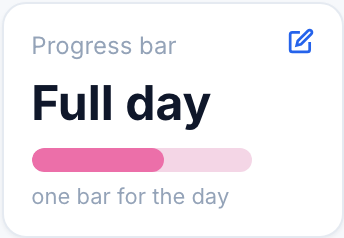
For patients where any number is triggering, Hidden keeps the whole bar off their screen. There is no penalty for the patient in choosing it.
Meal check-in (master toggle)
The Meal check-in tile is the on/off master for the whole post-meal reflection (feelings, urges, coping skills, and a note). On, the patient is asked how a meal felt, and those answers are what fill the meal cards in the Food Log. Off, the reflection is hidden entirely: the patient just logs meals, with no feelings, urges, coping, or note prompts. It is on by default.
Post-meal check-in delay
The Post-meal check-in tile sets how long after a meal is logged the app waits before offering the "how was it?" reflection. Options run from Off through 15 min to 90 min; the default is 30 minutes.
We hold the reflection back so the patient has actually eaten before being asked how it felt, rather than being prompted the instant they photograph the plate. Off means the app never auto-offers it, but the reflection stays editable inline on each meal.
The three collapsed cards
Below the tiles sit three cards, each collapsed to a one-line summary so the page stays scannable. Click a card to expand it; the summary always tells you the current state without opening it.
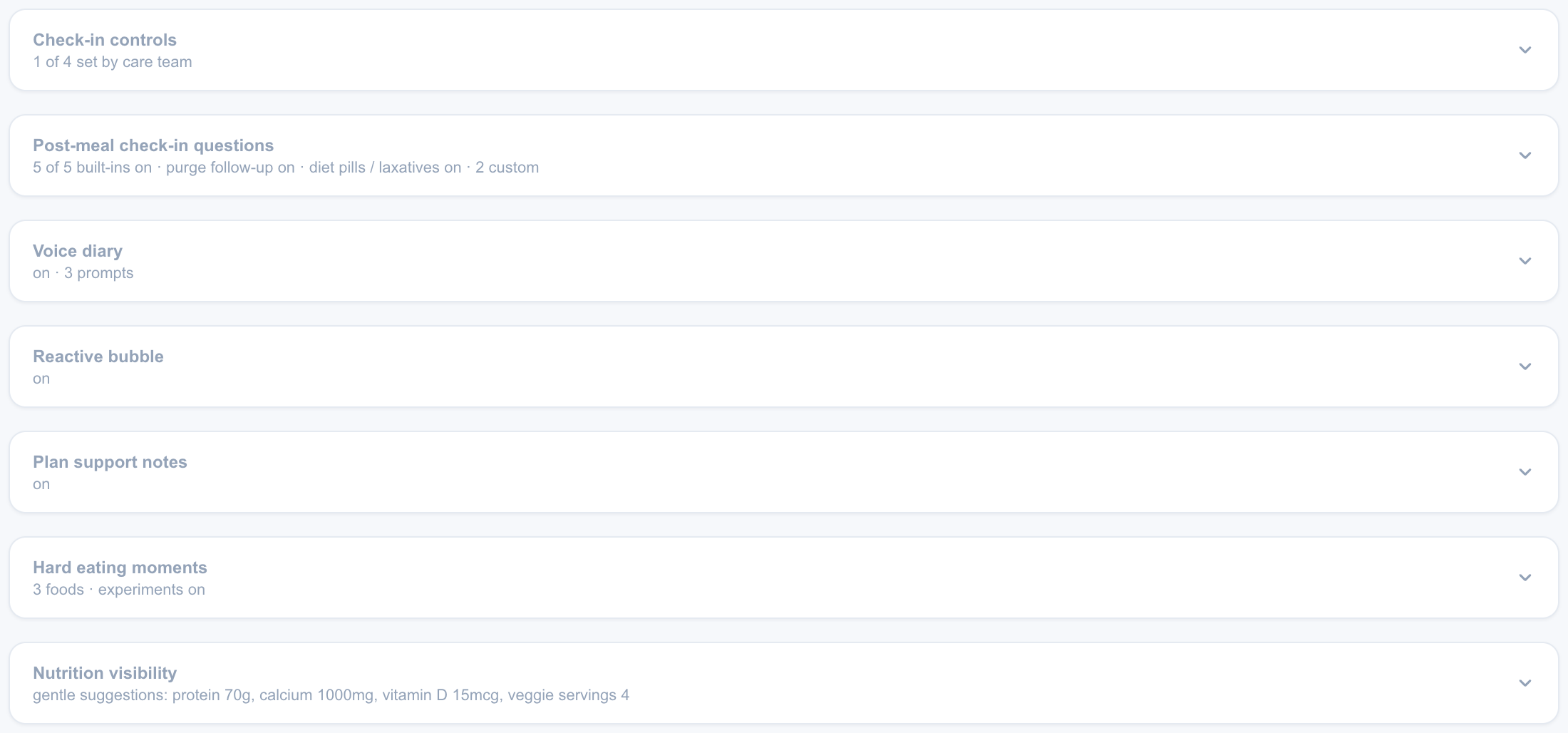
- Check-in controls locks or frees the app's reminder toggles, covered below.
- Post-meal check-in questions shapes the post-meal reflection question by question, including the clinician-gated purge follow-up and your own custom questions. It has its own page.
- Nutrition visibility decides whether, and how, the app shows the nutrients you select. Also its own page.
The purge follow-up used to be a standalone tile. It now lives inside the Post-meal check-in questions card, shown in its real position in the patient's sheet, and its toggle still saves instantly on its own. See Enabling the purge follow-up.
Check-in controls
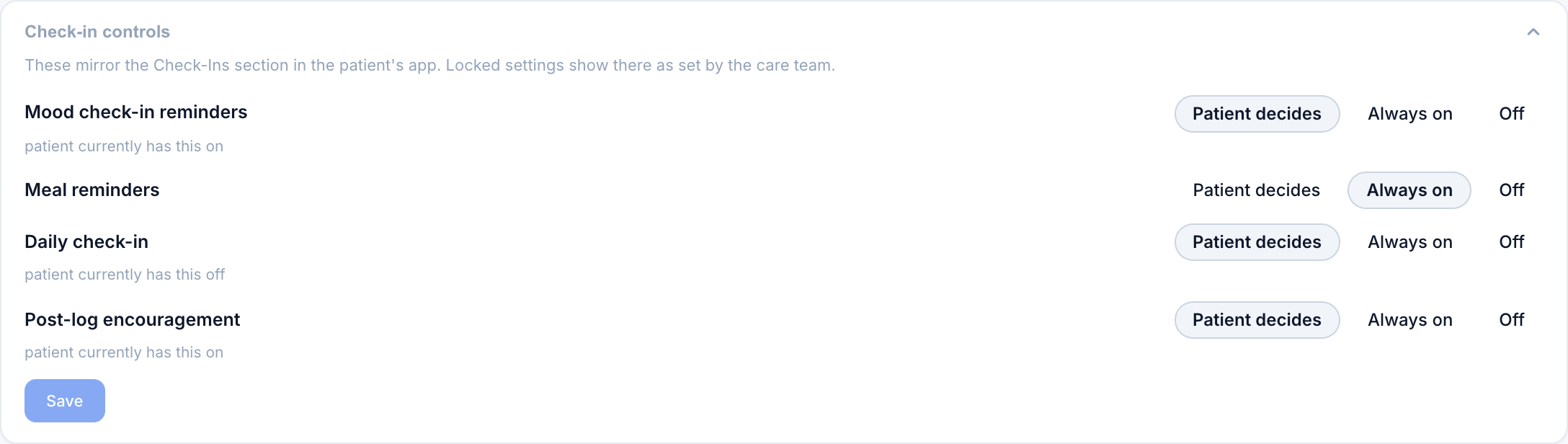
The Check-in controls card mirrors the Check-Ins section in the patient's app. For each of mood reminders, meal reminders, the daily check-in, and post-log encouragement, you choose one of three:
| Setting | Effect |
|---|---|
| Patient decides | The patient controls the toggle in their app. This is the default. |
| Always on | The setting is forced on and locked in the patient's app. |
| Off | The setting is turned off and locked in the patient's app. |
When a row is set to "Patient decides," the card also shows what the patient currently has that toggle set to. Locked settings appear in the patient's app as set by the care team.
Correcting a meal's calorie or nutrient-gram estimate is done on the Food Log, on the individual meal, not from Overview. The calorie correction stays on your side only; corrected grams reach the patient when nutrition visibility is on.
Also on this tab
More cards live on the Customizations tab:
- Care approach — Structured vs Intuitive eating, plus the meal-plan and grocery-list toggles. It has its own page.
- Chat, messaging & moments: turn the Pippa AI chat and/or care-team messaging off, or opt this patient into moment check-ins or the daily plan. See Turning chat and messaging on or off.
- Encouragement from you — short lines you write for Pippa to say right after this patient logs a meal. See Encouragement from you.
- Water — their hydration counts, and the daily goal you set. See Water.
(Reminders and a coin gift also live here; see Reminders.)
Finally, the Patient view button in the page header hides the clinician-only material (concerns, the control tiles, and all configuration cards) for safe screen sharing. See Patient view.