
Meal plans and the grocery list
The four cadence modes, the six Recovery Record style slots, optional targets, how plan adherence shows up in the log, and the shared grocery list.
The meal plan is the Recovery Record style structure the patient's day view is built around. You edit it from the top of the Nutrition tab. The patient sees the slots on their food log day view, and every save is stamped so both sides know who changed it last.
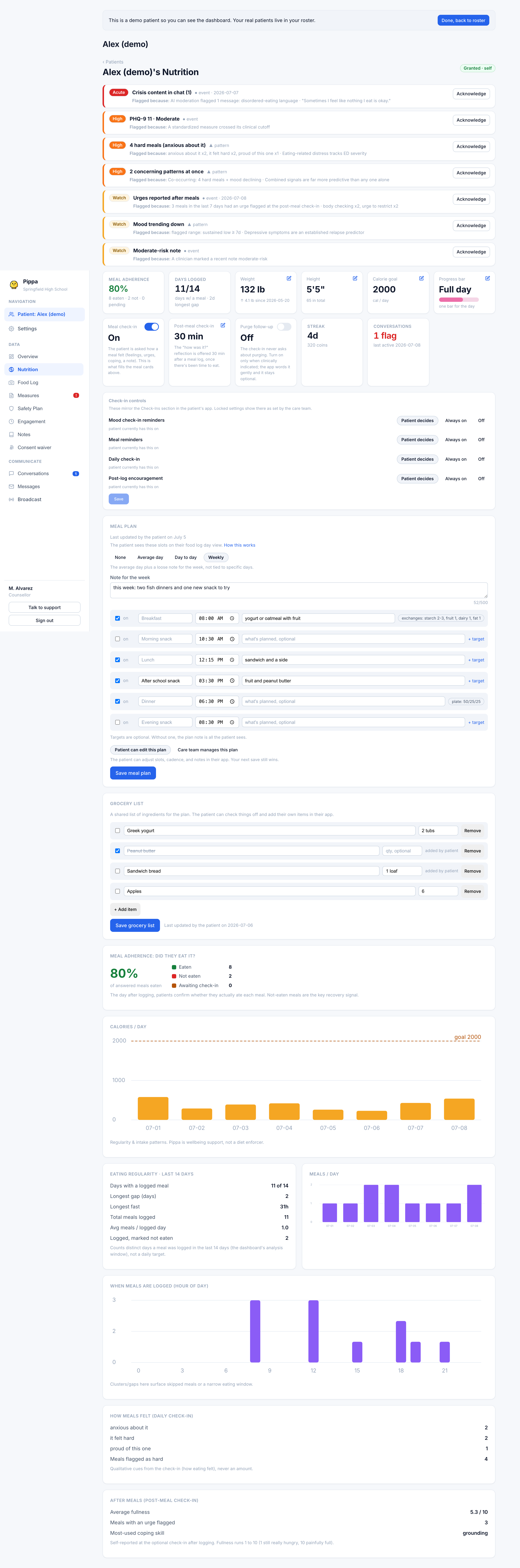
The four cadence modes
A row of pills at the top sets how the plan repeats across the week.
| Mode | What it means |
|---|---|
| None | No structured plan from the care team. The app shows the patient's own slot times. Any slots you built stay saved for when you switch back. |
| Average day | One template day that applies every day. |
| Day to day | A separate plan for each weekday, with the average day as the fallback for any day you have not given its own plan. |
| Weekly | The average day plus a loose note for the week, not tied to specific days. |
In Day to day, a context row lets you pick Average day or any weekday; a weekday with its own plan shows a dot. Days you have not customized simply "follow the average day" until you choose "Give [day] its own plan."
Slots and per-day overrides stay saved even when you flip to None or change cadence. Nothing is discarded until you deliberately remove it.
The six slots and their targets
Every plan is built from the same six fixed slots, each with a default label and time. Snacks are off by default; breakfast, lunch, and dinner are on.
| Slot | Default time | On by default |
|---|---|---|
| Breakfast | 08:00 | Yes |
| Morning snack | 10:30 | No |
| Lunch | 12:00 | Yes |
| Afternoon snack | 15:30 | No |
| Dinner | 18:00 | Yes |
| Evening snack | 20:30 | No |
For each slot you set whether it is on, a custom name, a time, and an optional free-text plan ("what is planned"). Targets are optional; without one, the plan note is all the patient sees.
Onboarding now walks a new patient through all six slots, not just the three meals: they can switch snacks on, rename any slot to whatever they actually call it ("second breakfast," "tea"), and set times. So a patient who onboarded before you opened this editor may already have a plan shaped around their real day. Open it before assuming the defaults.
They can revisit it any time from their app's Settings under Meal Times. If you turn on Only I can edit this plan, that screen renders read-only for them instead.
… dinner and evening snack below
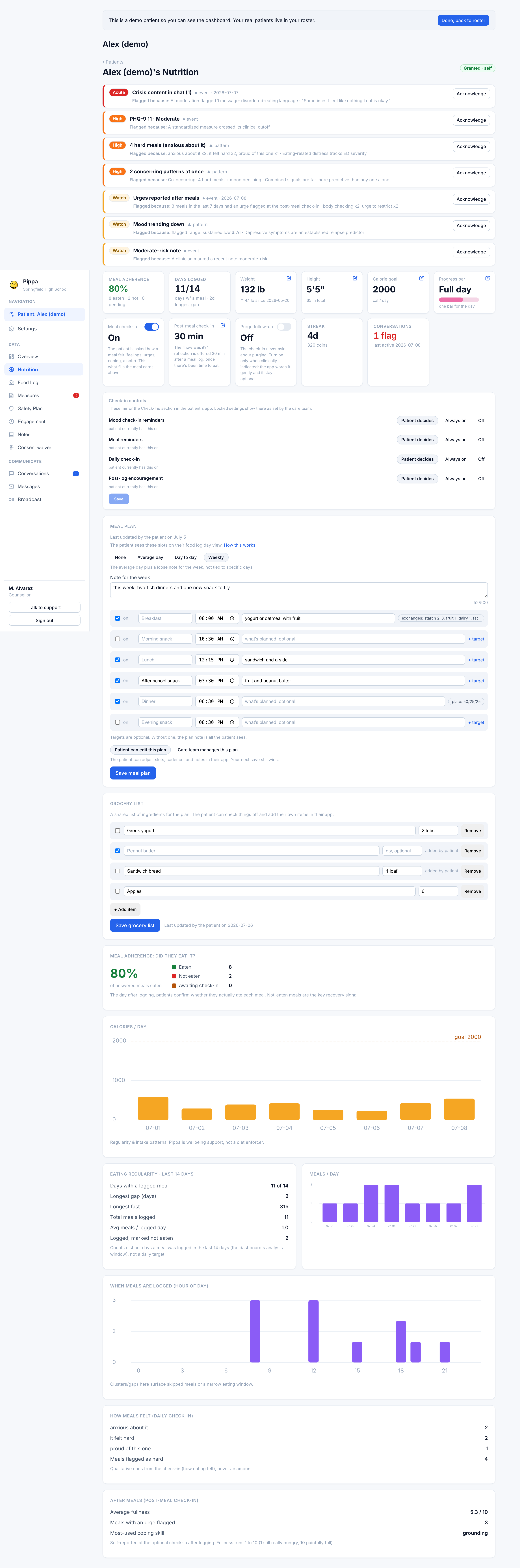
An optional structured target can be added per slot in one of two forms, and never as calories:
- Exchanges. Group counts (starch, fruit, veg, protein, dairy, fat, fun food), each a count or a min-to-max range.
- Plate %. Plate proportions as percents across grains, protein, produce, dairy, fat, and fun food. Two quick-fill templates are offered: Weight restoration 50 / 25 / 25 and Modified 33 / 33 / 33.
How plan adherence shows in the log
When a slot has a target, the patient can report at the post-meal check-in how well the meal matched it. That answer appears on the meal card in the Food Log as a gentle matched plan: yes, mostly, or no chip. Meals logged from a slot also carry that slot's name as a tag, so you can see at a glance which planned meals were actually eaten. It is a signal, never a scored result.
Who can edit the plan
A picker at the bottom of the editor decides who controls the plan in the patient's app:
- Patient can edit this plan lets the patient adjust slots, cadence, and notes in their app. Your next save still wins.
- Care team manages this plan makes the plan read-only in the patient's app; only the care team can change it.
The shared grocery list
Below the plan is a shared grocery list of ingredients for the plan. Both you and the patient can edit it: you add and check off items here, the patient does the same in their app, and the most recent save wins.
- Checkable rows. Each row includes a checkbox to mark completion, an item name input, an optional quantity input, and a quick remove button.
- Patient contributions. Items added by the patient are badged with an inline patient tag inside the item field.
- Capacity. The list holds up to 100 items and saves automatically when submitted.
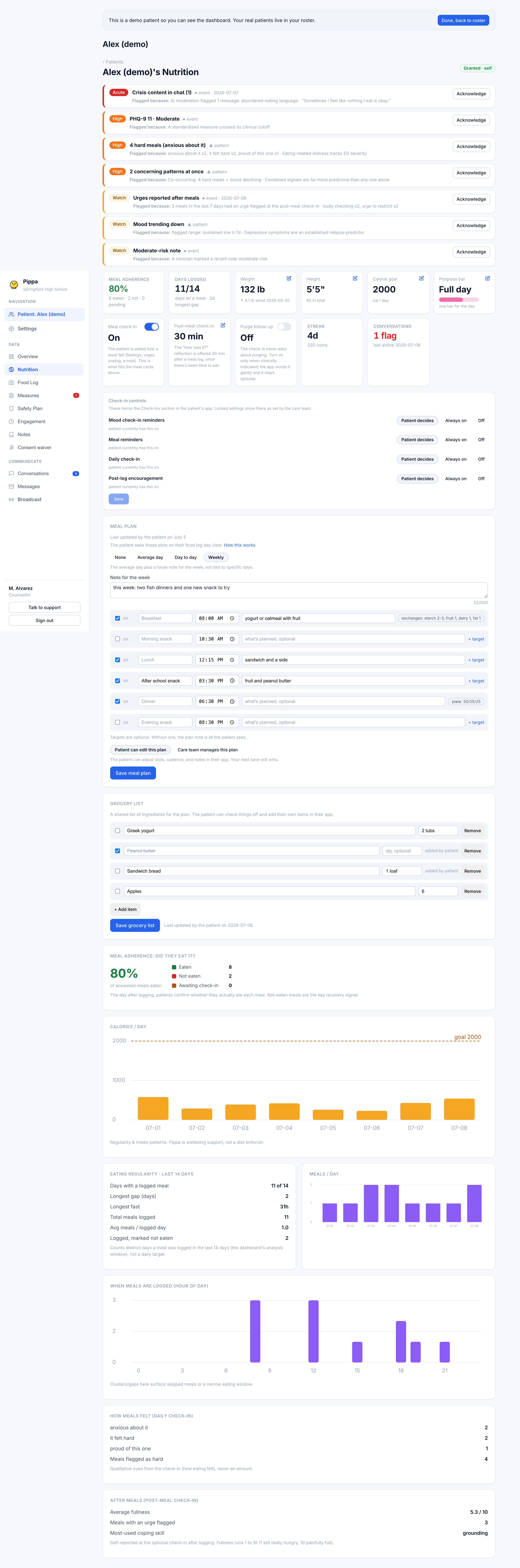
Because the grocery list and an editable meal plan are genuinely shared, coordinate with the patient so a save from one side does not quietly overwrite recent edits from the other.
The plan day view and the grocery list are not shown in the patient's app when their care approach is set to intuitive eating. You can also drop just these two surfaces without the full reframe, using the standalone Meal plan and Grocery list toggles on the Care approach card.