
Logging a meal
How a client logs a meal by photo, by describing it, or by skipping it, and why the calorie estimate is hidden from them.
Logging is the heart of your client's day in Pippa. It happens on the camera page, which doubles as a Recovery Record style day view: the day's meal plan slots in time order, each one open, logged, or skipped. There are three ways to log a slot, and all of them are gentle by design.
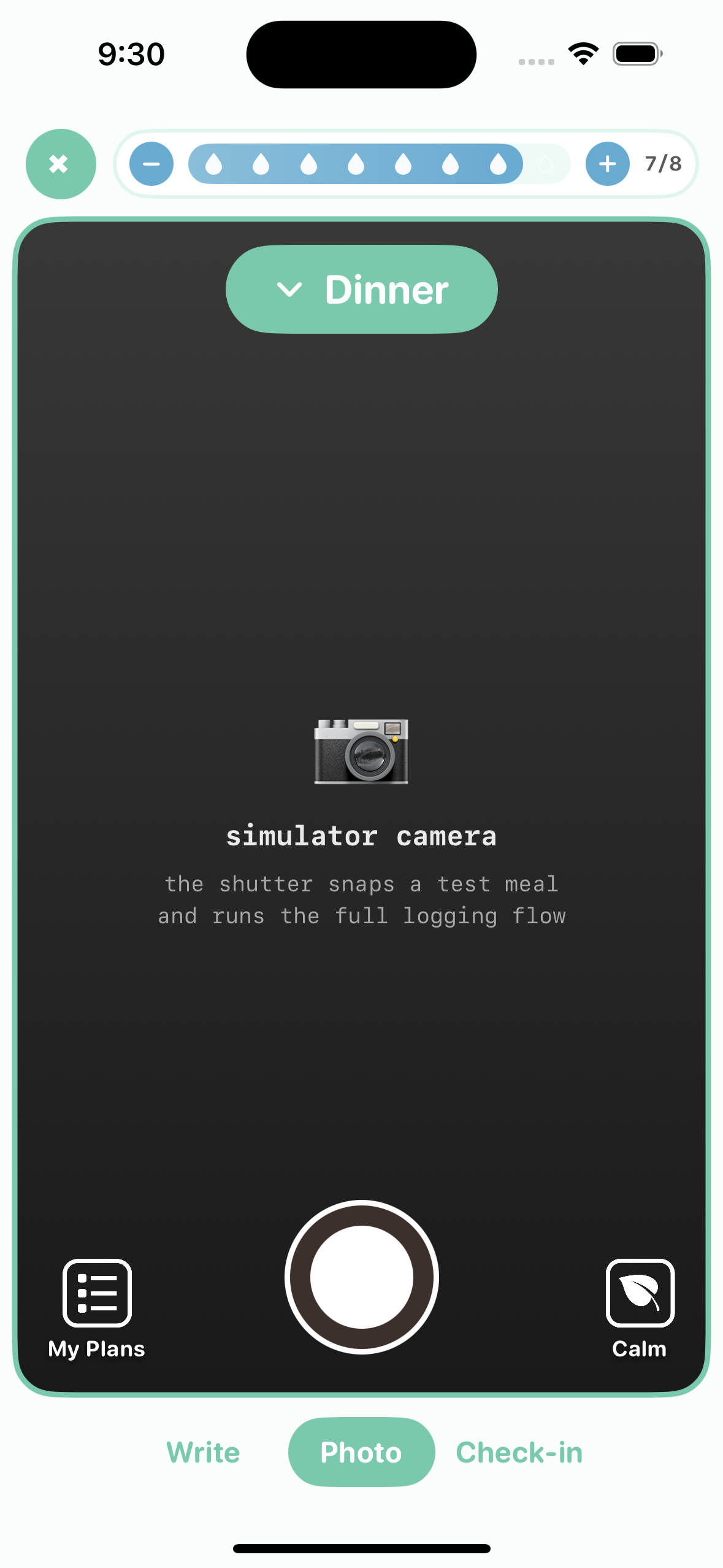
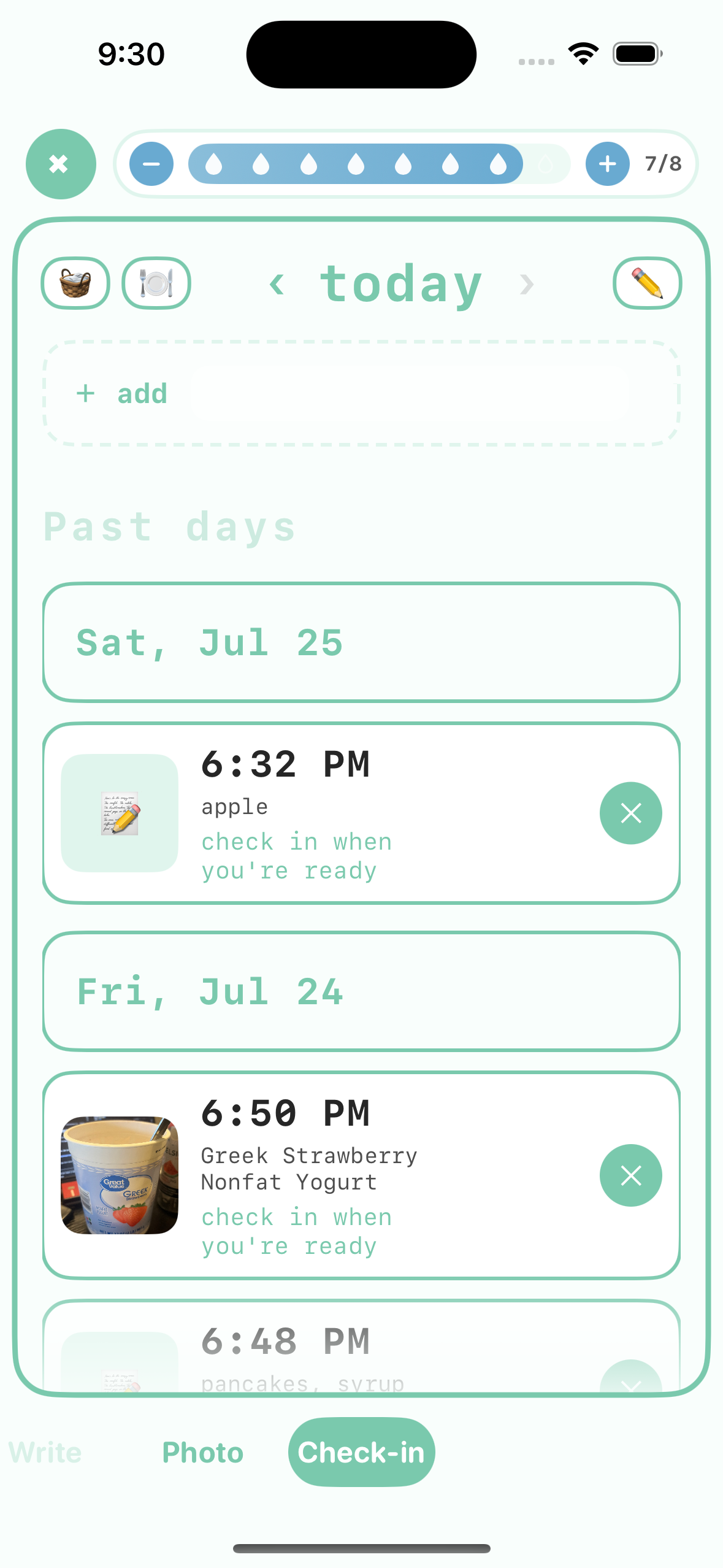
Three panes sit behind that page — Write, Photo, and Check-in — and the client can swipe sideways between them as well as tapping the selector at the bottom. Worth knowing when you are walking someone through the app over a call: "swipe left to your check-in" is often easier to follow than describing where a small tab sits.
A water bar runs across the top of the page next to the close button, all three panes. That is the hydration tracker; see Water for the goal you set and what the dashboard does with it.
The three ways to log
Your client taps a slot, chooses 📸 Take a meal pic, and photographs the plate. Pippa analyzes the photo in the background and files it into the right slot with a soft checkmark. If they are offline, the meal still saves and finishes analyzing later, with a reassuring note: saved 💛 you're offline right now, so pippa will finish up this meal once you're back online.
For a meal they forgot to log, 🖼️ Choose from library imports a photo from the camera roll. Pippa reads the photo's capture time and pre-fills it, so a lunch snapped earlier lands at the right moment; a small when was this? step lets them nudge the time if needed. Everything else (background analysis, the right slot) works exactly like a fresh photo.
Not everyone wants to photograph food. Tapping ✏️ Describe it instead opens a plain text box: no photo needed. just tell Pippa what you had, in your own words. This saves a photo-less entry, and Pippa estimates it from the text assuming average portions, so described meals carry a calorie and nutrient estimate on your dashboard just like photos do. The client still sees none of those numbers.
If a meal did not happen, your client can tap I skipped this. A skip is logged, never styled as failure. The confirmation reads that's okay 💛 and being honest is the kind thing, and one meal never defines your day. They can optionally tap a feeling chip (it felt hard, no appetite, anxious about it, rather not say), but nothing is required.
In the day view a skipped slot shows the neutral label skipped, that's okay 💛, and in the history it reads skipped, no judgment. Skips are never colored red and never worded as a failure. On your dashboard a skip still counts as an honest log, so it flows into skip-rate signals without ever being punished in the app.
If a skip was a slip of the finger, tapping the skipped slot offers Undo skip / Keep it skipped. Undoing removes the skip and returns the slot to log ›, so the client is never stuck with a skip they didn't mean.
The day view: slots, names, and the anytime snack
The day view lists the plan's enabled slots in time order. The default names are Breakfast, Morning snack, Lunch, Afternoon snack, Dinner, and Evening snack; if you rename a slot on the dashboard, your custom name is exactly what the client sees. Each slot shows its state plainly: an open slot offers log ›, a logged slot gets a soft checkmark and photo thumbnail, and a skipped slot reads skipped, that's okay 💛.
If you set an exchange or plate target for a slot, it appears as a gentle line under the slot, for example 2 starch · 1 fruit · 1 dairy · 1 fat or 50% grains · 25% protein · 25% fruit/veg (+ dairy, fat, fun food). The "extra" exchange is always worded fun food. Targets are read-only for the client and labeled set with your care team 💛.
Below the slots sits + add a snack, which logs into the Anytime snack slot. The word "extra" never appears in the app; a snack is part of the day, not on top of it.
The plan itself follows the cadence you chose (shown to the client as no set plan, average day, day to day, or weekly). If you made the plan member-editable, their editor says your slots, your times. reminders follow them. If the care team manages it, they see your care team manages this plan. you can still peek anytime. and everything is read-only. Details on setting all this up live in Meal plans.
Getting the meal right
Two things changed here recently, both about a log landing under the meal the patient meant.
The picker now says what it will do. The meal pill at the top of the log screen and the code that files the entry used to resolve the slot separately, and they could disagree: the pill read "Dinner" while a typed log quietly filed as an anytime snack, leaving the dinner slot showing unlogged. They now share one answer. The pill also respects the same 90-minute attribution window the rest of the app uses, so it no longer offers "Dinner" at four in the afternoon.
It asks when it genuinely cannot tell. If the patient picks a slot and the clock sits squarely inside a different one, or if they pick nothing and the time matches no slot at all, a one-tap card asks "which meal is this?" before anything is written. The options are listed in day order and styled identically, because if the app could guess it would not be asking. A 12:30 lunch with lunch in the plan logs in one tap and is never interrupted.
And it stays changeable afterwards. Each logged meal in the check-in list carries a small slot chip; tapping it re-files the meal, and the change reaches you. Previously the card showed the clock time but never the slot, so a mis-filed meal was invisible on the one screen whose job is reviewing what was logged.
Backdating
Your client can log a past day using the day stepper (‹ day ›), back up to 14 days. A backdated entry lands in the right slot and date but skips the celebratory animation and the delayed check-in, so it never pings them about a meal that already happened.
Two of the log options also carry their own editable time, so a client can place a meal in the past without stepping the whole day back: a Choose from library import defaults to the photo's capture time, and Describe it instead has a time field. Both stay within the same 14-day window.
What about calories?
Pippa estimates calories and nutrient grams (protein, carbs, fat, fiber) from meal photos and from described meals, because those numbers are genuinely useful to you as a clinician. Calories are deliberately hidden from your client everywhere in the app.
Calorie counting is itself a symptom of many eating disorders, so no calorie number is ever shown to the patient, on any screen. Skips carry no estimate at all. You see the analyzed calories in the dashboard Food Log; if the estimate looks off, you can correct it clinician-side, and the calorie correction is never synced back into the patient app.
The one prescribed exception is nutrients, not calories: if you turn on nutrition visibility for a client, their app can show selected nutrients as gentle daily progress bars or a single suggestion line. That is a clinician choice, off by default, and it can never surface a calorie.
If you prescribe nutrition visibility
Nothing below exists in the app until you turn it on. In numbers mode, a card titled from your care team 💛 appears above the day's slots, with one warm progress bar per chosen nutrient. Under target the caption is factual, like 22g of 90g today; at or past the target it simply reads there 💛. Bars never turn red and never show a percentage.
Meals in the detail view also gain a small gram line for the chosen nutrients, like 32g protein · 6g fiber, preferring your corrected grams over the AI estimate.
In suggestions mode there are no numbers anywhere, just one line per day based on yesterday. Met targets get validation: yesterday had solid protein, keep doing what you're doing 💛. Under target gets a nudge with no amount attached: your care team suggests leaning into protein today or your care team suggests weaving in a bit more fiber today. Words like "low," "only," or "behind" never appear.
If you also enable the morning note, one notification fires at 9:30 AM, always number-free: a note from your care team 💛 / there's a gentle nutrition note in your food log today. Configuration and safety rails are covered in Nutrition visibility.
After any log, a gentle affirmation appears (this can be toggled off in Settings), and the pet celebrates on the home screen. The reflection about how the meal felt comes later, covered next in The post-meal check-in.