
Your first 15 minutes
A startup checklist: sign in, turn on your connect code, connect your first patient, set up their app, and learn the five-minute daily loop.
By the end of this page your dashboard is set up, your connect code is ready to hand out, you know how to set up a patient's app, and you have a daily routine that takes about five minutes. Each step says roughly how long it takes.
You need a staff account. Your clinic admin (or the Pippa team) invites you by email. No invite yet? Ask your clinic admin, or see Adding your team. Clinic admins: add your colleagues before you invite patients, so everyone starts together.
The checklist
| Minute | You will | Done when |
|---|---|---|
| 0 to 2 | Sign in and sign the HIPAA attestation | You land on Today |
| 2 to 5 | Turn on your connect code | You have a code to share |
| 5 to 10 | Connect a patient and set up their app (or practice in the demo) | You know the three day-one choices |
| 10 to 13 | Check your settings | Your phone notifications are set |
| 13 to 15 | Learn the daily loop | You know where to look each morning |
Open dashboard.getpippa.app/mock in another tab. It is the real dashboard filled with made-up patients, so you can click through steps 3 to 5 without touching anyone's data. Nothing you do there is saved. The demo already has patients, so it skips the first-time card from step 2.
Open dashboard.getpippa.app. New here? The link in your invite email takes you to set a password (we email you a 6-digit code first to check it's you). Already use Pippa? Sign in with the password you have. You can always get back to it with Set or reset your password on the sign-in page.
The first time you sign in, Pippa shows a one-time HIPAA confidentiality attestation. Type your full name and draw your signature. No patient records load until you do, and you won't see it again.
You land on Today: what needs a person today, across everyone you care for. On day one it says "Nothing is waiting on you", which is expected. Click Open your clients.
While your Clients list is empty, it shows a card that says Patients connect themselves with your code. Click Sign once to activate, draw your signature with your mouse or finger, and click Create my code. That signs the standard Pippa data-sharing agreement once, for every patient who ever uses your code. It takes about 30 seconds.
Now hand it out. Under your code are buttons to Text it or Email it (the message is written for you), copy the invite link, or print it. You can also just read it aloud in session.
Here is what the patient does:
- Installs Pippa and creates an account. The invite link has the App Store and Google Play links, so that is the easiest thing to send someone who doesn't have the app yet.
- Enters your code when the app asks Have a code from your provider? at the end of setup. Already using Pippa? They go to Settings, then Sharing & privacy, then Data Sharing.
- Types their name and signs. The app shows them your name and clinic, and that only you can see their data. They appear on your Clients list as soon as they sign.
Patients who use your code connect to you, not your whole clinic. A colleague sees them only if you invite that colleague to the patient's care team and the patient signs with them too.
When a teen enters your code, the app sends the agreement to their parent or guardian. The teen shows as connected once the guardian signs. Under-13s can't create an account. See Minors and guardian consent.
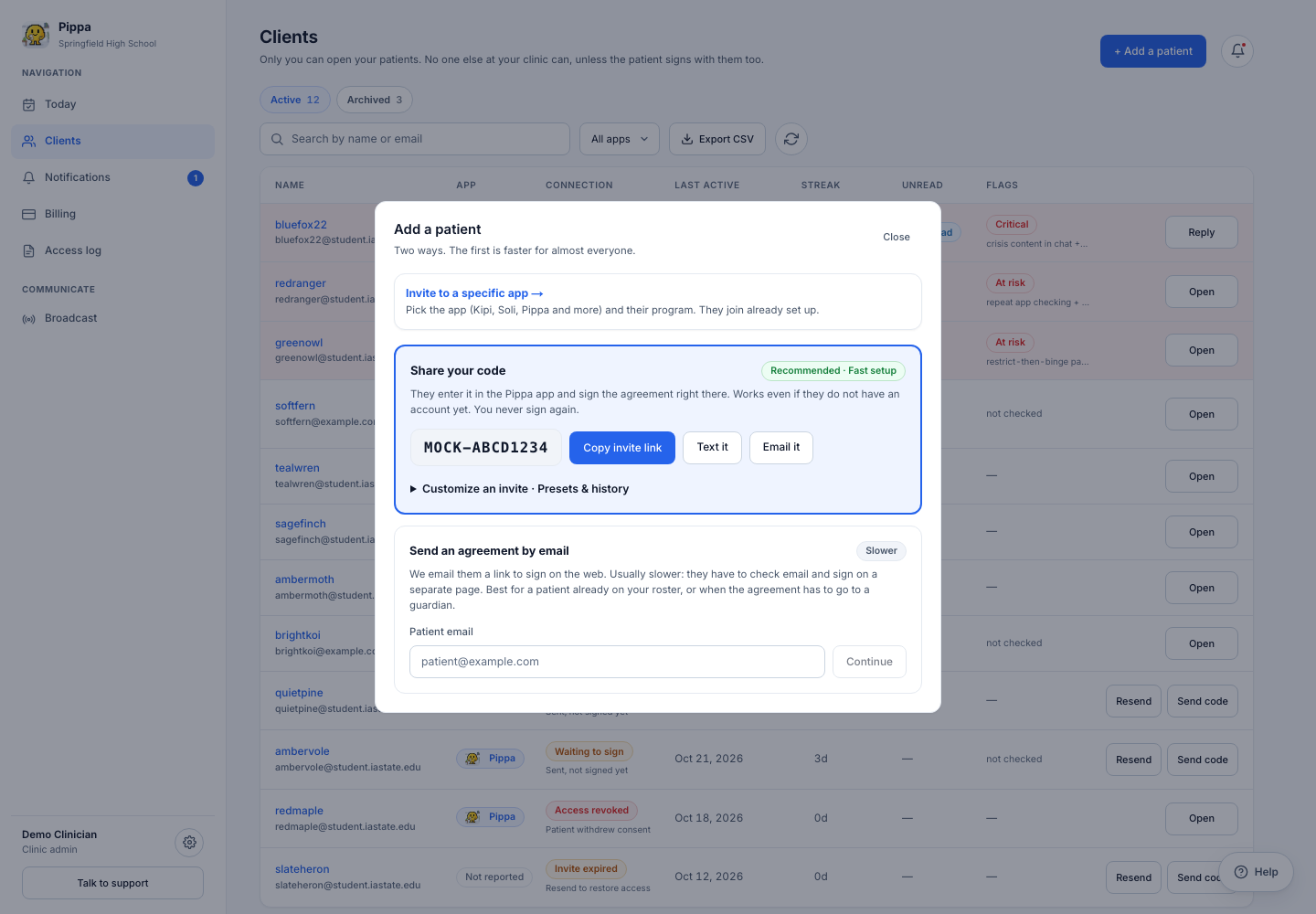
Lost track of your code later? Once you have patients, it lives under + Add a patient and in Settings under Your connect code, where Manage lets you make a new one or turn it off. + Add a patient also has two other routes: Send an agreement by email (only for someone who already has a Pippa account) and Invite to a specific app (their setup is ready before they open it).
If your patient is with you and connected, do this with them. If not, do it on a demo patient now and come back after your first patient signs.
Click the patient's name on Clients. Their page opens on Summary, and the side menu groups everything else: Tracking, Customize, Plans, Care, Evaluations, and Access. Cards on these pages can be folded: click a card's title to open it.
Three choices are worth making on day one. Everything else can wait until you know how they use the app.
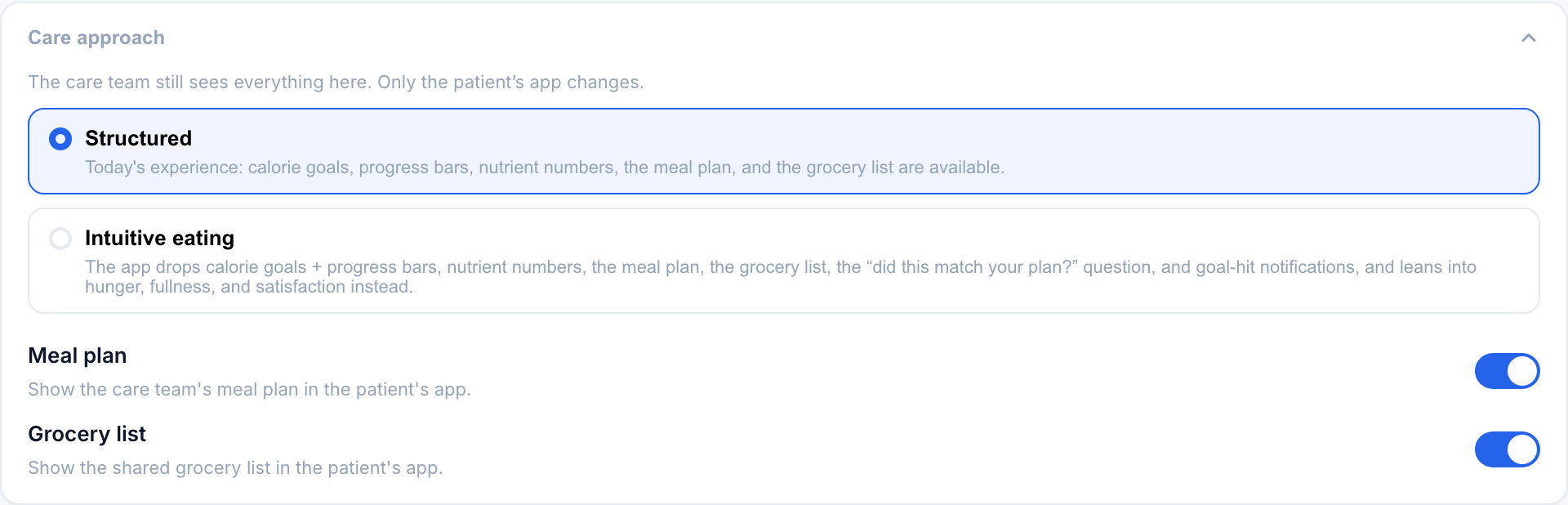
- How structured should their app be? Customize, then the Care approach card. Structured is the default: calorie goals, progress bars, nutrient numbers, the meal plan, and the grocery list are available. Intuitive eating hides the numbers and plans. The same card has an ARFID mode switch, which counts new foods without pressure (turning it on sets Structured). See Care approach.
- Should they have the AI chat and messaging? Customize, then Chat, messaging & moments. Both are on by default. Turn either off if it isn't right for this patient. See Chat and messaging.
- What is their safety plan? Plans, then Safety plan. Plan to fill it in together in your next session. It shows in the patient's app and is shared with their care team. See Safety plan.
If a patient's data is hidden, they haven't finished signing yet (this happens with the email route and with teens waiting on a guardian). Their Access section shows where the agreement stands.
Click the gear icon next to your name at the bottom of the left menu.
- Notifications: push alerts on your phone for safety alerts, messages from clients, and new clients. They go to the Pippa For Clinicians app, which uses the same login as the website. Install it and sign in there to start getting them.
- Alert thresholds: how long a pattern has to last before the dashboard flags a patient. Everyone can read them, so you know why someone is flagged. They apply to the whole clinic, so only a clinic admin can change them. The same goes for the Daily email digest: one email a day naming which patients are flagged, never anything a patient wrote.
- Clinic admins can add colleagues here too. See Adding your team.
Most of the value is a short loop, once a day:
- Open Today. Four counts sit at the top: Needs attention (help requests, urgent symptoms, flags), Unread messages, Waiting on you (consents and invites), and Waiting on patient (agreements they haven't signed yet). Anything that needs you is listed below them. Work top to bottom.
- Open anyone flagged. The Clinical alerts panel on their Summary says what was noticed and why. Acknowledge it once you have handled it; your name and the time are recorded.
- Before a session, open Quick review on their Summary to read the period since you last met.
Pippa does not watch patients around the clock, and neither do you. When you record a C-SSRS in Evaluations, then Measures, and the highest item is 4 or more, every clinician on that patient's care team gets an email right away. See the crisis alert playbook.
Waiting on your first patient?
- They don't show up yet. They appear the moment they sign. Reload Clients, or turn on New clients in Notifications to get a push. Still nothing? Check that they typed the code exactly, and look at Waiting on patient on Today.
- They're 13 to 17. Their parent or guardian has to sign first.
- They don't have the app. Send the invite link: it has the store links and walks them through.
Stuck? Ask the dashboard
Click Help in the bottom-right corner of any dashboard page (a round ? on a phone) and ask in plain words, like "how do I turn off the AI chat for one patient?" The Pippa guide answers from these docs and gives you a button straight to the right page or tab. Support in the same panel reaches the Pippa team.