
Onboarding a patient
How a client joins Pippa, what they see during onboarding, and how consent lands on your roster.
This page follows a client from "not on Pippa yet" to "granted on your roster." There are two sides to it: what you do on the dashboard, and what your client sees in the app. We cover both, so you can walk a client through it on the phone.
Step 1: the client needs a Pippa account
Before you can add someone, they need their own Pippa account in the patient app.
- Self sign-up. Anyone can download Pippa on iOS or Android and create an account. Most self-pay clients arrive this way.
- Institution-sponsored. Some clients join through a participating institution using a short join code or an email-domain match, which grants sponsored Premium. This is one way to get Premium, not the only way.
On the dashboard you add a client by their email. That email must already belong to a Pippa account. If it does not, the add is refused. Have the client create their account first, then add them.
Step 2: add the client and send the agreement
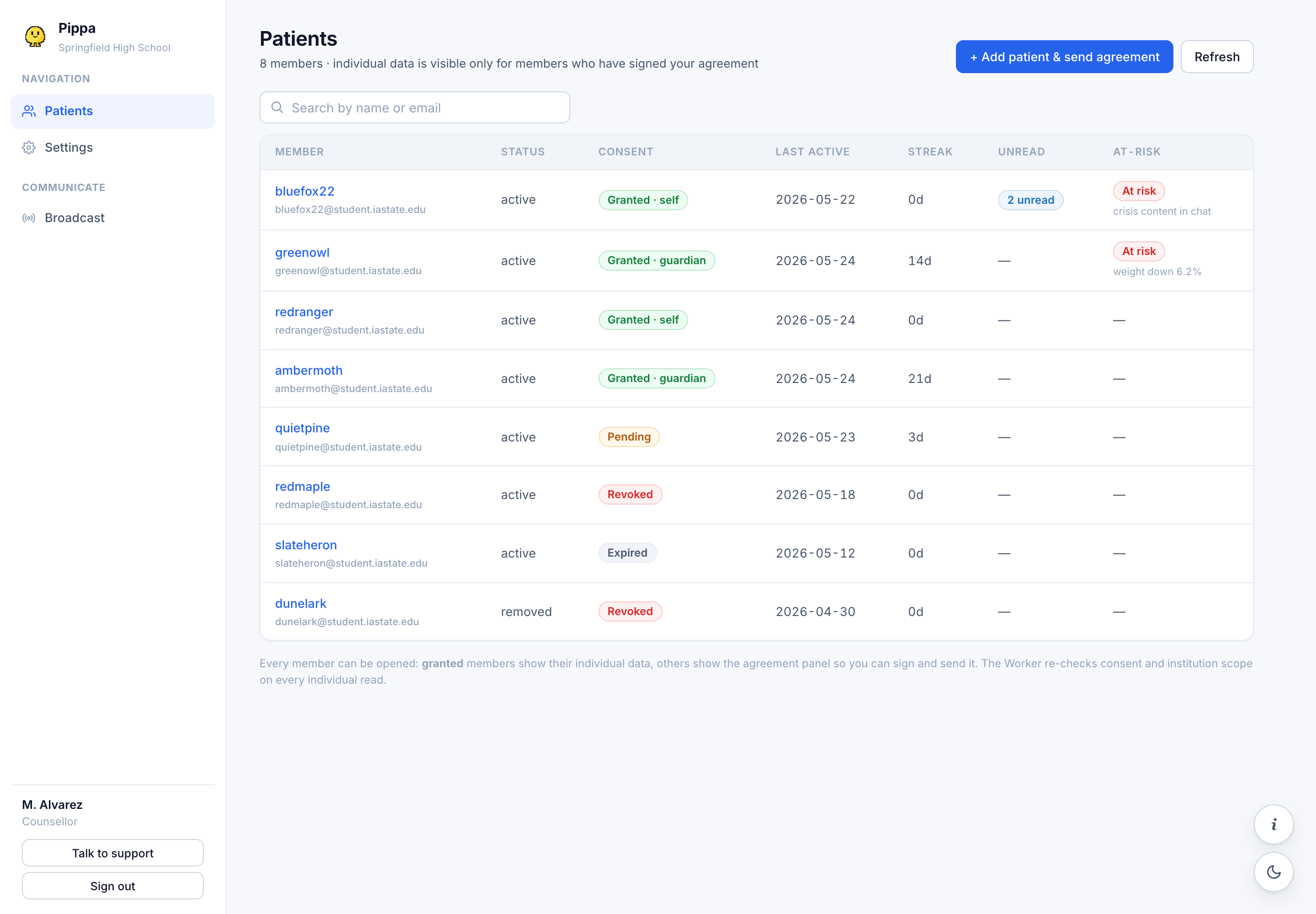
On your roster, choose + Add patient & send agreement. Enter the client's email and sign the consent agreement yourself. When you submit, Pippa:
- adds the client to your roster, and
- emails them a link to review and sign the same agreement.
If the email cannot be delivered (for example, an address not yet verified while we are in an email sandbox), the panel gives you a link to copy and share with the client directly.
Step 3: what the client sees during onboarding
When a new client sets up the app, they go through a short onboarding. Here is the exact experience, so nothing surprises you.
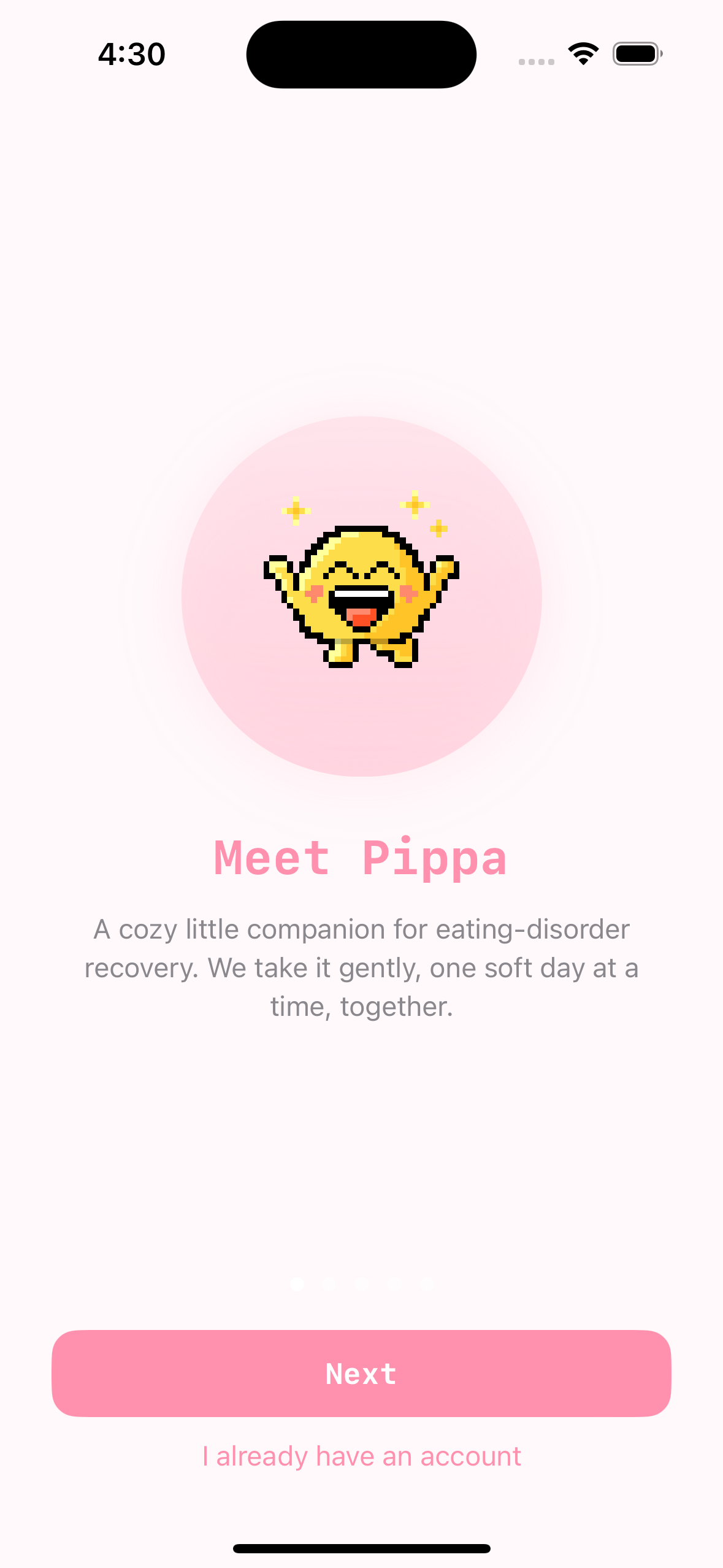
Age gate, before any personal info. Pippa asks When were you born? first.
- Under 13 is blocked. The app says: Pippa accounts for children under 13 are only available through a participating treatment provider. Please ask your parent or care team to contact us.
- 13 to 17 needs a guardian. The app explains Because you're under 18, a parent or legal guardian needs to agree for you. and asks for a Parent/guardian email. The guardian agrees to the Terms on the teen's behalf, and Pippa emails the guardian to confirm.
- 18 or older agrees for themselves: I'm 18 or older and I accept the Terms of Service and Privacy Policy as my own agreement.
Meal times. The app asks 🍽️ When do you usually eat? and collects 🍳 Breakfast, 🥗 Lunch, and 🍽️ Dinner times. It explains: Pippa uses these to send gentle reminders, and she'll keep learning your rhythm as you log meals. You can change them anytime in Settings. These are for gentle reminders, not targets.
Signing your agreement. Separately from account setup, the client opens the consent link you emailed and signs their side of the agreement. This is the step that connects them to you.
The signed agreement is a HIPAA authorization. Once granted, it lets you see the client's full individual data, including meal logs and photos, weight, engagement, and their Pippa AI conversation summary. Make sure the client understands what they are agreeing to before they sign. Full detail lives in Consent and privacy.
Step 4: how consent lands on your roster
The Consent column on your roster tracks exactly where things stand:
- Pending means the agreement is not fully signed. If you have signed but the client has not, the client's row reads "link sent, awaiting signature." No individual data is visible yet.
- Granted means both sides signed. The client's name now links to their full patient page, and their tiles and tabs populate.
- Revoked, Expired, or Removed mean access is off. A revoked or removed client stays visible on the roster but their data is closed to you.
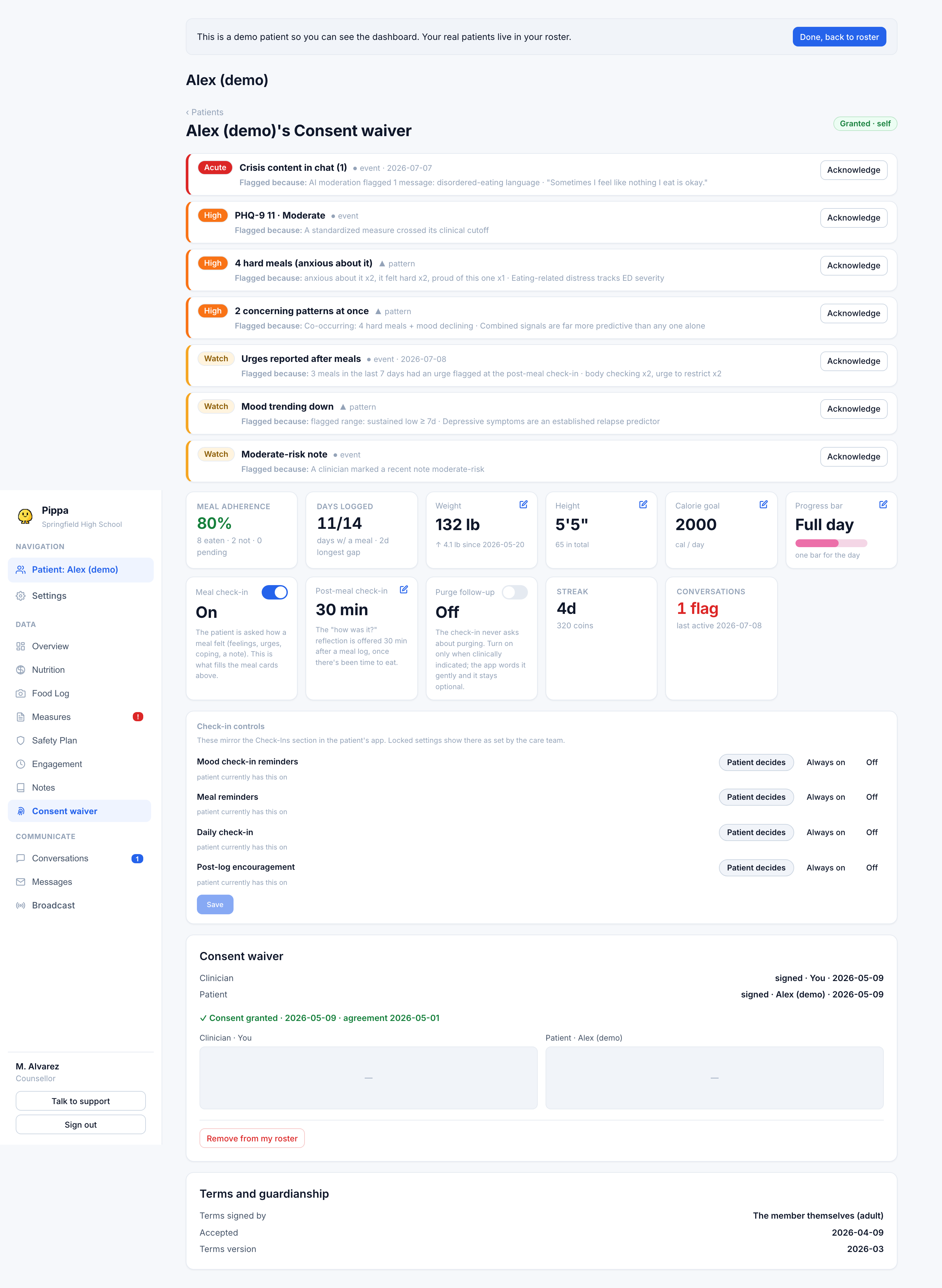
If a client is stuck on Pending, open their Consent waiver tab and use Re-send link. Your signature on file is reused, so you do not sign again.
For a client who onboarded as a minor, the patient page has a Terms and guardianship card showing whether the guardian confirmed by email and whether the client has re-accepted the Terms as an adult at 18. See Minors and guardian consent for the full loop.
Once a client reads Granted, head to Your first 15 minutes to start reviewing their data.